GETTING STARTED
How to use Nothing But Flows
Everything you need to plan and teach a class on the web: build a flow, organize your flows, teach with Run, and set up a studio. Open the app alongside this page and follow along.
No card needed to start. Already have an account? Sign in.
A quick tour
The web app has three places, along the top of the screen:
- Build is where you plan. Your Flows are on the left, the open flow is in the middle, and the Move Library is on the right.
- Schedule is your teaching calendar. Attach a flow to each class.
- Account, in the menu at the top right, has your profile, your studios and your subscription.
Your account starts with an Example Flow you can open, change or delete.
Build your first flow
Start a new flow
Choose + New in the Flows list and type a name at the top of the plan.
Add moves
In the Move Library, search or pick a category, then press + beside a move. Each one starts with a single 45-second set. Moves are added to the end of the class; use Change above the library to add them somewhere else. Moves you use often can live under Favorites, and + Create custom move at the bottom of the library adds your own.
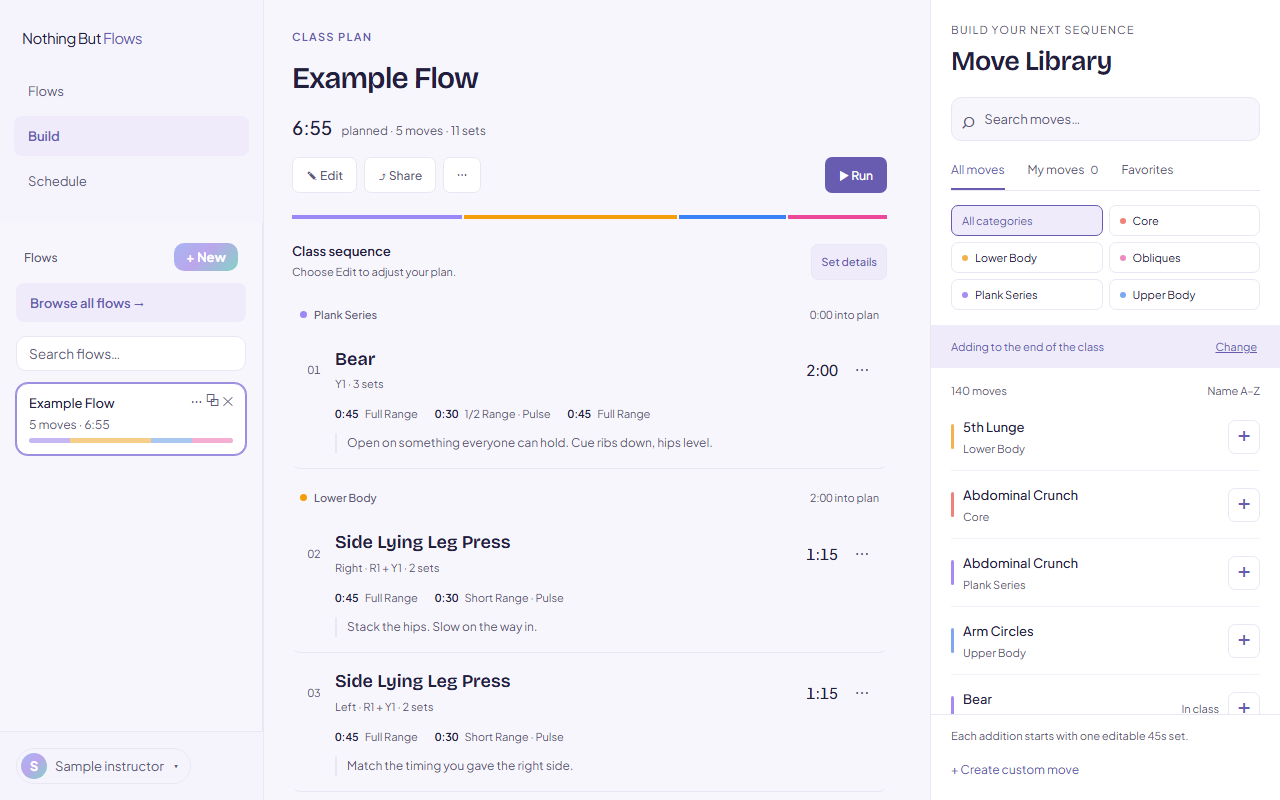
The actual web app, with the example flow. Tap to enlarge ↗ Set springs, sets and timing
Choose ✎ Edit, then select a move. In Move details, set the side and the spring load. Each set has a range, a variation and a duration; + Add set adds another. Write your cues in Coaching notes, then press Save. The plan’s total time updates as you go.
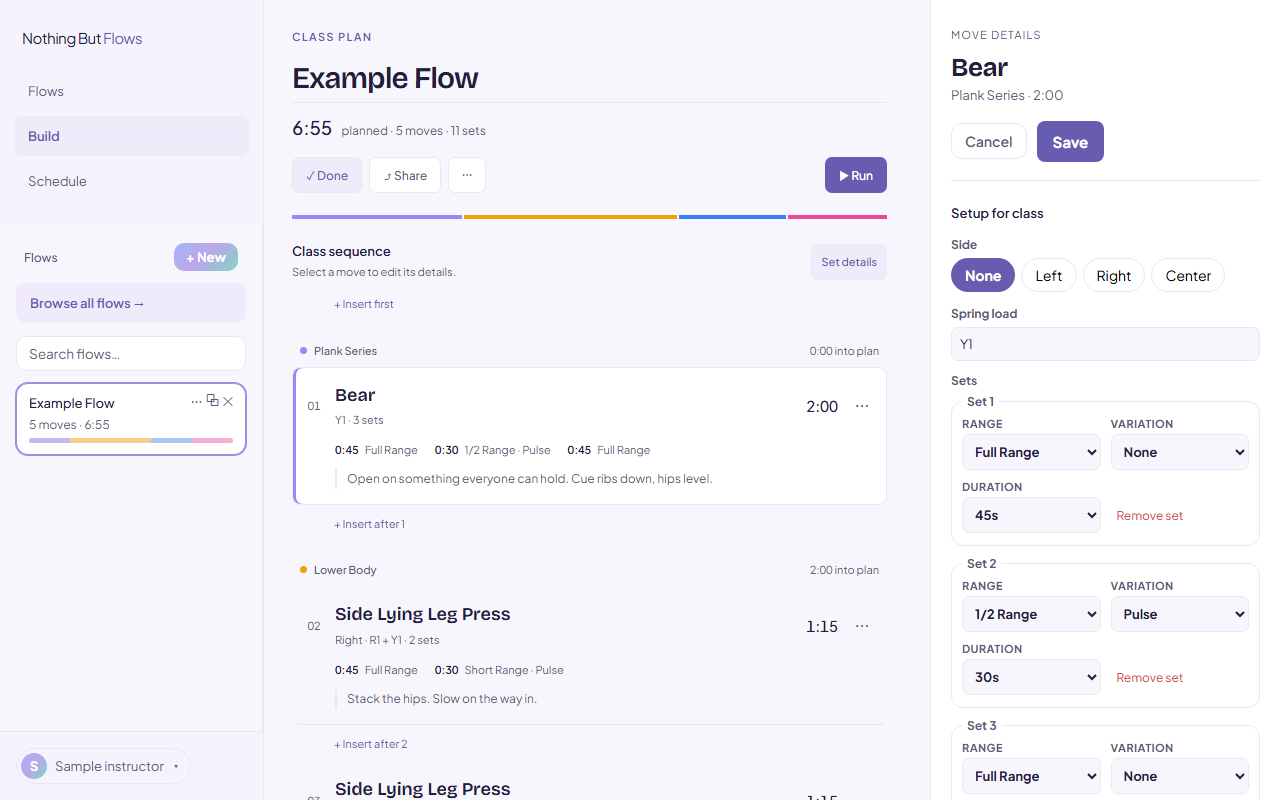
The actual web app, with the example flow. Tap to enlarge ↗ Reorder, duplicate or remove moves
While ✎ Edit is on, drag a move by its number to reorder it, or open its ⋯ menu for Move up, Move down, Duplicate move and Swap move. + Insert after adds a move at that spot. To take a move out, select it and choose Delete move in Move details.
Name and save
There’s no save button for the flow: it saves as you work. Press ✓ Done when you’re finished, which locks the plan so a stray click can’t change it.
Organize your flows
- Find a flow: search the Flows list, or choose Browse all flows → to search by flow name, move or note and Sort the list.
- Keep favorites close: in a flow’s ⋯ menu, choose Pin to top. Pinned flows stay at the top of the list (pins are saved in this browser).
- Duplicate and tweak: press ⧉ beside a flow to make a copy you can change.
- Delete: press ✕ beside a flow you no longer need.
- Send a flow: ⤴ Share copies a read-only link for a mentor or a co-teacher, and the plan’s ⋯ menu copies the class as text. Neither publishes anything.
Planning on paper first? Print the class plan worksheet.
Teach with a flow
Put it on your schedule
Open Schedule and choose + Add class. Pick the day and time, attach the flow you’re teaching, and set it to repeat Weekly if it’s a regular class. Select a class to see its plan, or Prepare in Build → to make changes.
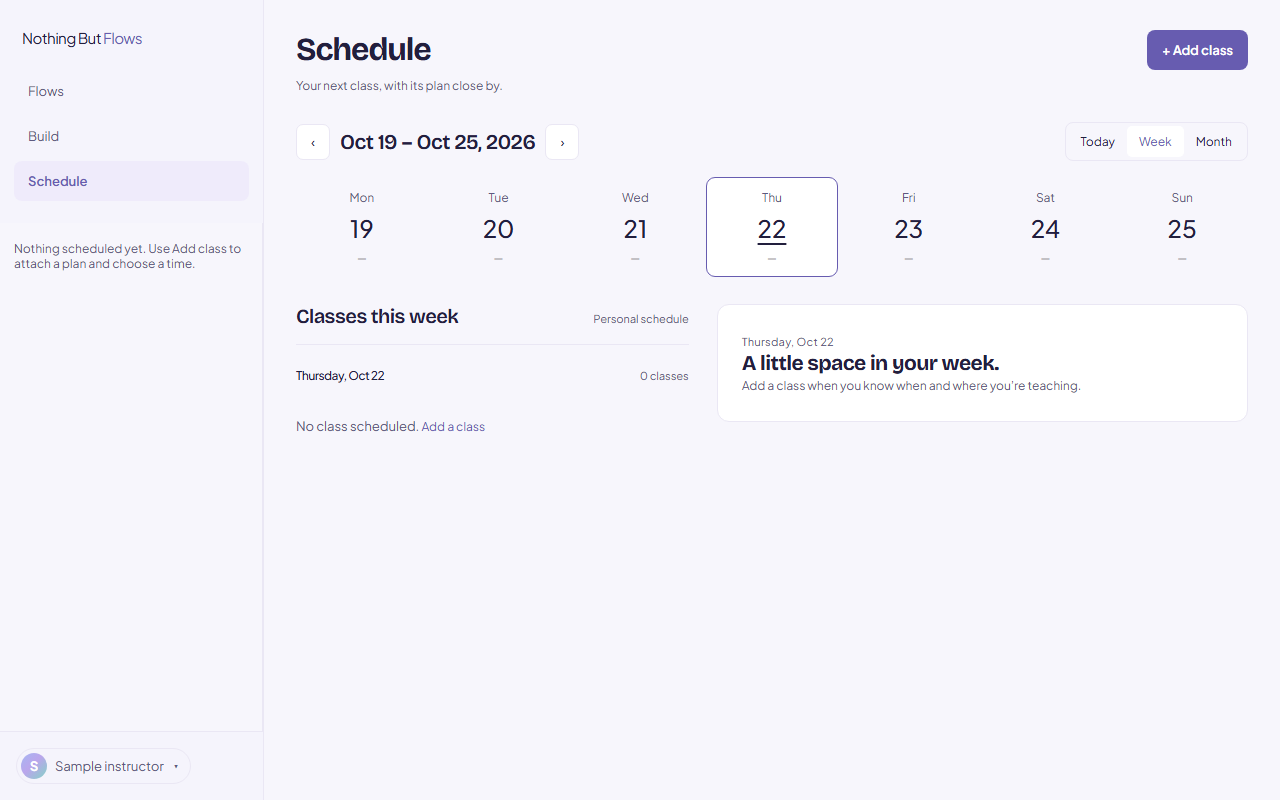
The actual web app, with the example flow. Tap to enlarge ↗ Open it in Run
Press ▶ Run on a flow. Choose how long the class will be, or use the plan’s length, then Open Run and press Start.
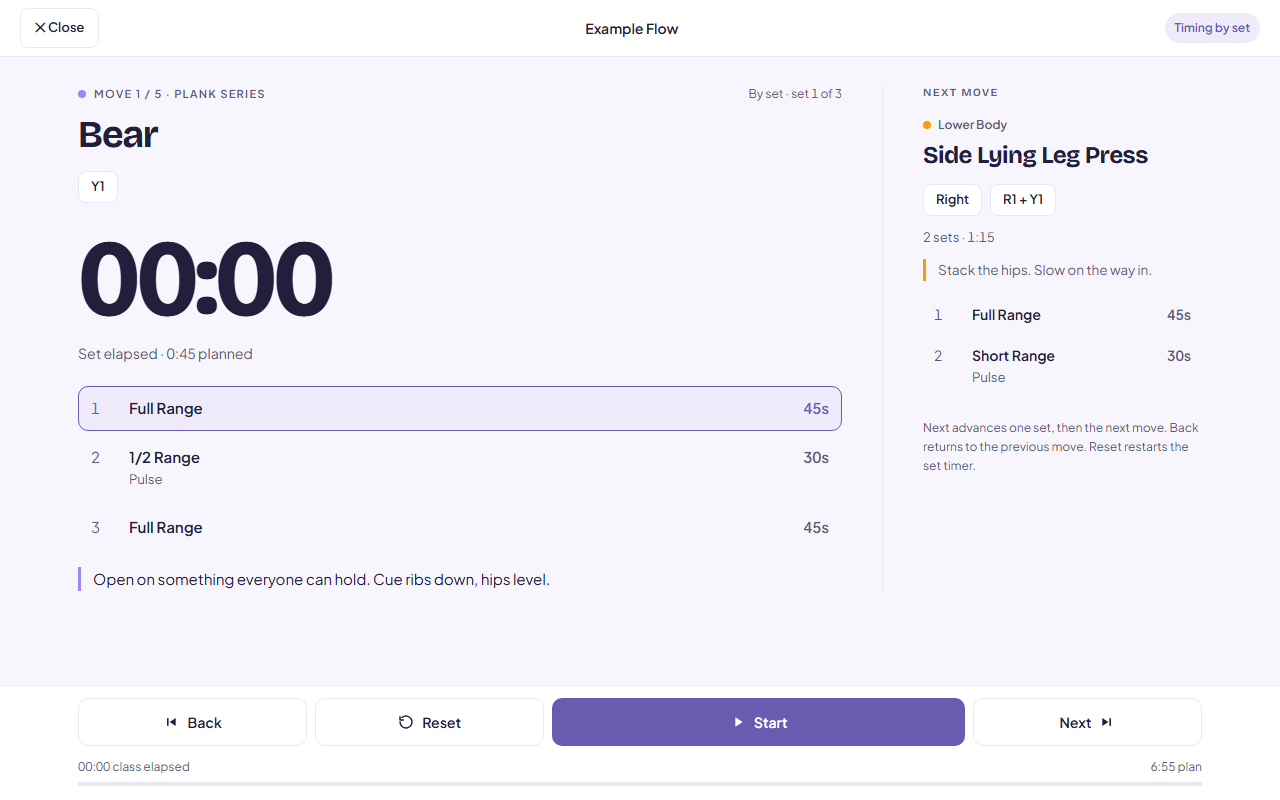
The actual web app, with the example flow. Tap to enlarge ↗ Move between moves mid-class
Next goes to the next set, then the next move; Back returns to the previous move; Reset restarts the set timer. On a keyboard, the space bar starts and pauses, and the right arrow is Next.
Tips for staying on track
- Rehearse once with Run before class, so the timing holds no surprises.
- Glance right: the next move, its springs and its cue are always there.
- Keep coaching notes short enough to read at a glance.
Teach from your phone
Sign in with the same account on your phone’s browser, or in the iPhone app, and open the flow when it’s time to teach. Everything you plan on the web is there, and the iPhone app keeps the screen on during Run.
After class
In Schedule, select the class and choose Mark as taught. The flow keeps count of how often you’ve taught it.
Set up a studio/community
A studio doesn’t have to be a business. It can be any group of instructors who want to share flows: the team at your studio, a community, or the people you trained with. It’s optional, and your flows stay private unless you share one to it.
Create your studio
Open Account, then under Your studios choose + Create or join a studio and Create a studio. Give it a name and a modality. You’re its admin.
Invite instructors
Select the studio in Account and use Copy code to send its studio code to your team. They choose Join with a code in their own account and join as instructors.
Share flows with the studio
In a flow’s ⋯ menu, choose Share to your studio; Make private takes it back. To see what the team has shared, switch the menu above your Flows list from My Flows to the studio.
Manage the studio
As admin, you can see everyone in the studio, remove a member, and regenerate the studio code if it has been passed around too widely.
Stuck on something?
The Support page covers accounts and subscriptions, and you can email us from there.